
Arc Mutual Information
Context
Mutual Information is one of the central concepts from the field of Information Theory (see Key Concepts) and critical for learning and analyzing Bayesian networks. Within BayesiaLab, Mutual Information is listed in many reports and can be visualized in numerous contexts.
Usage
To display the Mutual Information on the arcs of the network, select Menus > Analysis > Visual > Overall > Arc > Mutual Information or press the J key as a shortcut. The width of each arc in the network is now proportional to the Mutual Information.
An additional control panel is available in the Toolbar, which allows you to define the Mutual Information thresholds for the arcs.

By moving the slider or typing in a specific value, BayesiaLab grays out all arcs that fall below that threshold. Alternatively, you can use the previous and next buttons to step through the specific thresholds at which arcs appear or disappear.
Click the Arc Comment icon on the Toolbar to display the Mutual Information values as a comment label on each arc. Alternatively, you can select Menus > View > Show Arc Comments.
By default, the Mutual Information is shown at the top and the Symmetric Relative Mutual Information at the bottom. However, you can specify which measures you want to display inside the Arc Comments label.
The corresponding options are available under Menus > Window > Preferences > Analysis > Visual Analysis > Arc's Mutual Information Analysis:
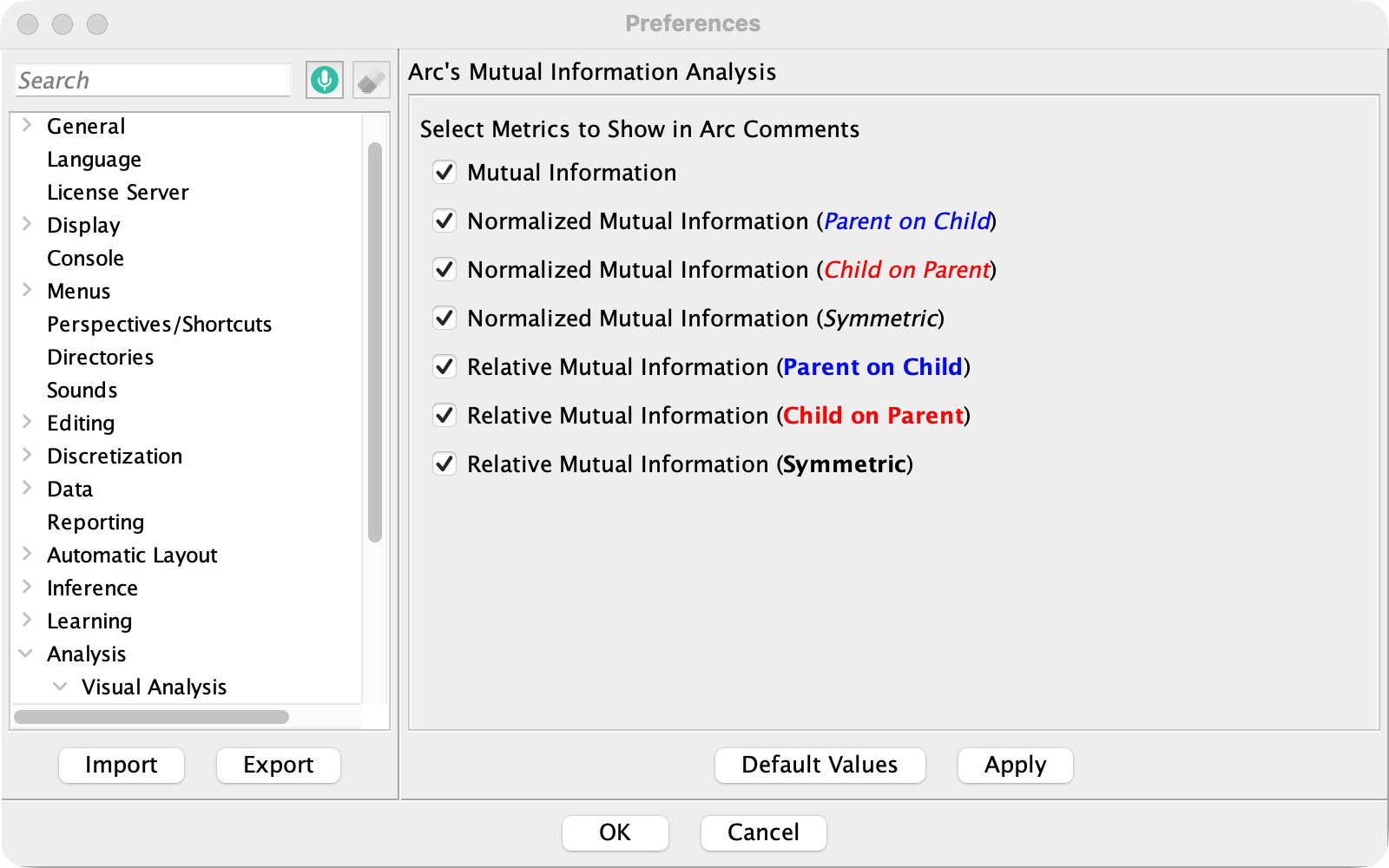
For the directional measures, Parent on Child follows the direction of the arc, and Child on Parent goes in the opposite direction.
The Visit Asia network below shows all seven measures in each arc label, in the order listed in Preferences.
By clicking the checkmark icon for validation, you can save all computed Mutual Information values as Arc Comments so that they will be retained even after this analysis concludes. This validation also saves the widths of the arcs as a graphical property.
Note that once values have been saved as Arc Comments, they are merely static text labels, which will not be updated if the network changes.
Clicking the cancel icon concludes the analysis without saving any information from the analysis.