
Protect
Context
Protect a network with a password to restrict editing. When the network is locked, you cannot add or remove nodes or arcs, change their probability tables, or associate a data set for learning. You can still use analysis and inference. Node costs remain editable for workflows in Validation Mode , such as the Adaptive Questionnaire.
Usage
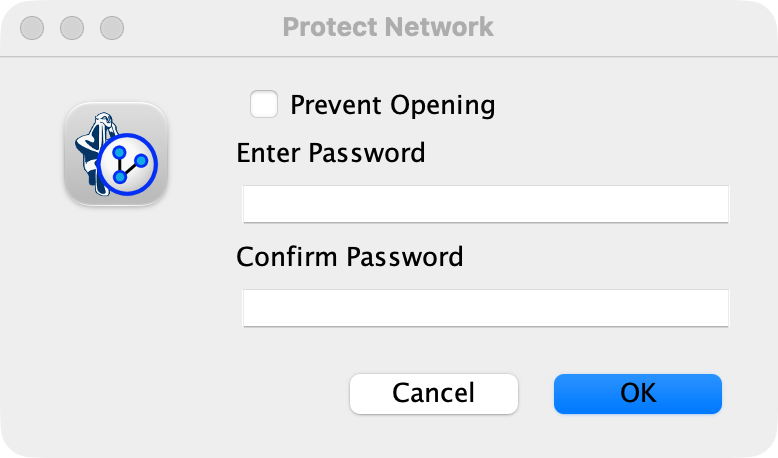
Select Menus > Network > Protect. In Protect Network, enter and confirm a password. Use Prevent Opening if you also want BayesiaLab to require the password to open the file.
The open lock in the Status Bar indicates that editing is available. Click it to lock the network. Click the closed lock and enter the password to enable editing again. See the Lock icon for both states.
While the network is unlocked, select Menus > Network > Protect to open Network Protection.
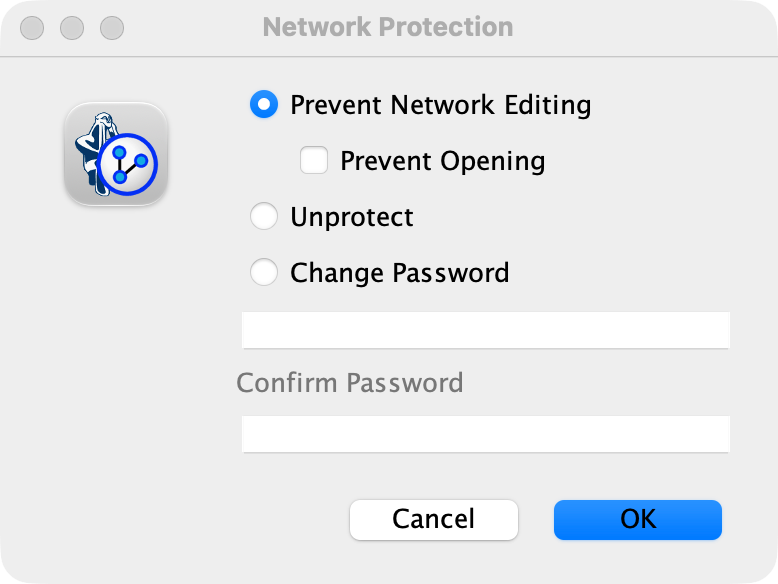
- Prevent Network Editing locks the network with its current password.
- Unprotect removes the protection.
- Change Password replaces the current password.