
Monitor Style
Context
The Monitor style adds the functionality of a Monitor to a node in the Graph Panel. This allows you to enter evidence directly on the Monitor in the network instead of through the Monitor in the Monitor Panel. The Monitor style adopts any changes applied to its corresponding Monitor in the Monitor Panel, such as Absolute Bars, Relative Curve, etc.
Usage
-
Select the node(s) you want to modify.
-
Apply the Monitor style using one of the following methods:
-
Select
Node Contextual Menu > Properties > Node Style > Monitor. -
Select the
Monitoricon from the dropdown menu in the Toolbar.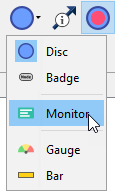
-
Select
Menus > View > Node Style > Monitor.
-
-
Behavior in different modes:
- Modeling Mode: The Monitor style shows Node States but no distributions.
- Validation Mode: The full benefit of the Monitor style becomes apparent. It displays the node’s distribution along with statistics like Mean, Value, and Standard Deviation.
- Directly enter evidence by clicking on a state in the Monitor in the Graph Panel.
- Fine-tuning options:
-
To customize the Monitor style, access the full set of options via
Node Contextual Menu > Properties > Rendering Properties > Edit All.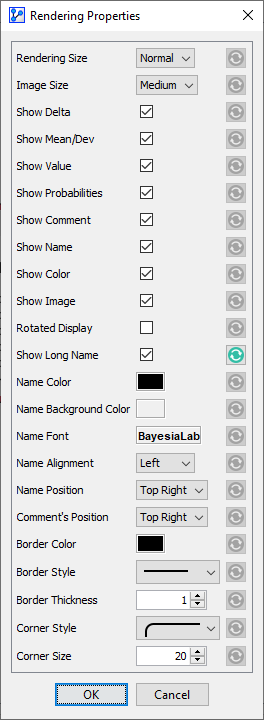
-