Edit Structural Priors
Overview
If expert knowledge is available prior to machine-learning a network structure from data, it can be useful to incorporate such knowledge into the learning process to improve the quality of the model to be learned. BayesiaLab offers various methods for specifying prior knowledge, including Structural Constraints, Dirichlet Priors, and the Structural Coefficient.
Prior knowledge can also be defined at the arc level, i.e., “more locally” than what is possible with Local Structural Coefficients, which operate at the node level. The Structural Priors Editor allows you to manage Structural Priors at the arc level.
Usage
You can open the Structural Priors Editor in two ways. Select Edit > Edit Structural Priors from BayesiaLab’s Menus, or right-click on the Graph Panel background to open the Contextual Menu and select Edit Structural Priors.
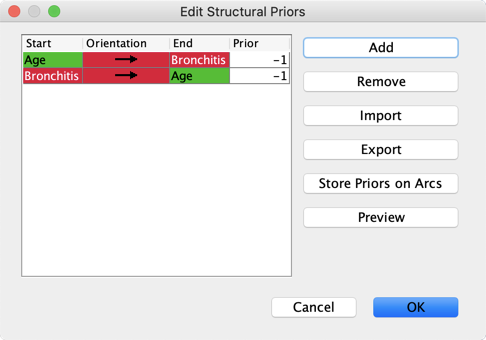
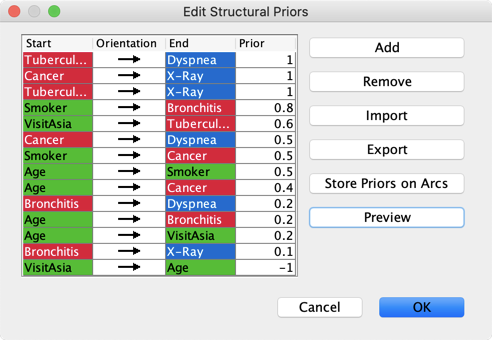
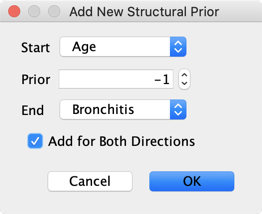
To add a Structural Prior, click the Add button, specify the Start node, the End node, and the value of the Prior. The values of Structural Priors can range between -1.0 and 1.0, where -1.0 strongly increases the cost of adding an arc, and 1.0 strongly reduces it. However, -1.0 is not the same as forbidding the arc in the Forbidden Arc Editor: if the data suggests a strong relationship between the relevant nodes, an arc can still be added between them. Also, +1.0 does not mean forcing the arc; if the data suggests that the relationship between nodes is weak, no arc will be added. Additionally, you can check the box Add for Both Directions to apply the same Structural Prior value for both arc directions.
By clicking on a column header in the Structural Priors Editor, you can sort the table by that column. The color of the Orientation cell is identical for those arcs that have the same Structural Prior assigned to both arc directions.
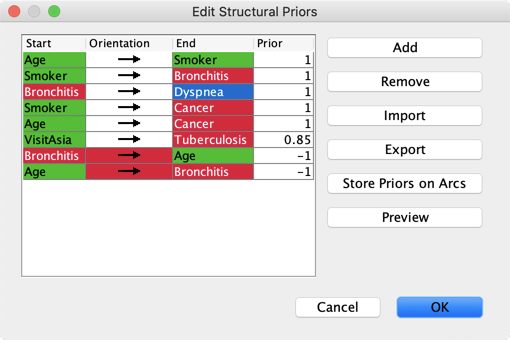
Import and Export Dictionaries of Structural Priors
You can use Dictionaries to save and load Structural Priors.
Store Priors on Arcs
Clicking the Store Priors on Arcs button adds the value of the Structural Prior as an Arc Comment. Once your network is learned, and you click the Show Arc Comments button in the Menu Bar, the Structural Prior appears as a badge on the corresponding arc.
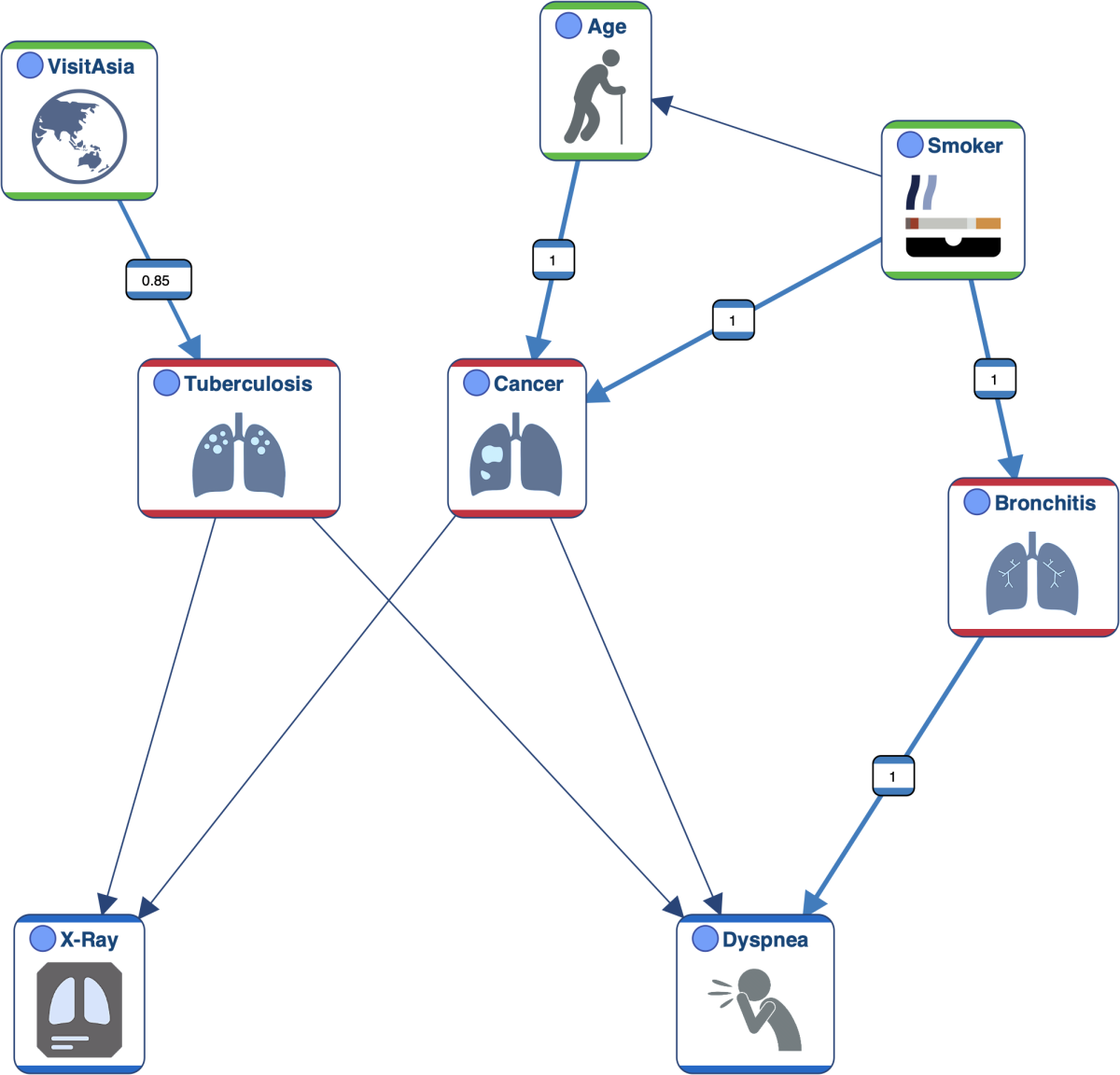
This is a one-time copy of values into the Arc Comment field, which is not updated if you later change a Structural Prior or even change an arc direction manually. The Arc Comment remains unchanged until you click Store Priors on Arcs again.
Preview
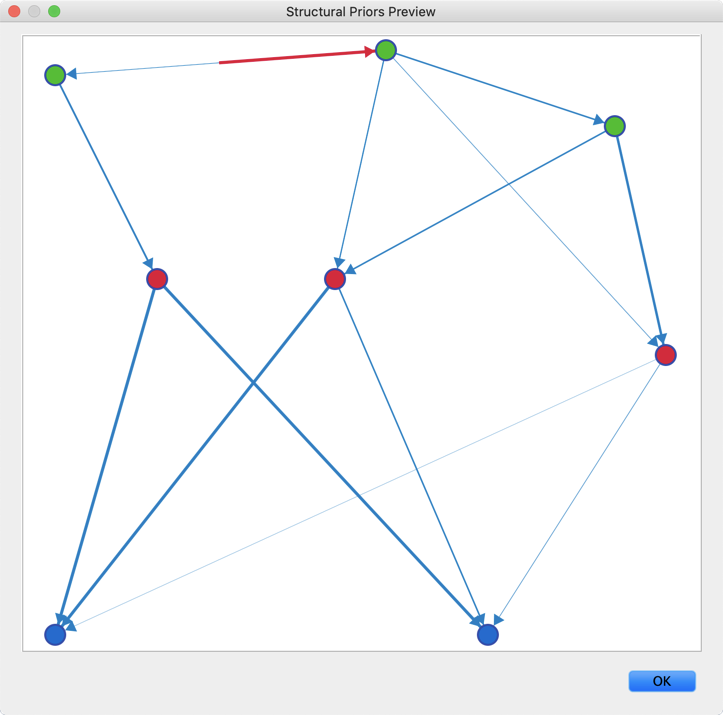
Clicking the Preview button generates a visualization of the Structural Priors you have defined. The thickness of the links is proportional to the absolute value of the respective Structural Priors. Positive Structural Priors are represented in blue, negative Structural Priors are shown in red. If the Structural Priors are different for each direction, the thickness and color attributes are applied to half-arcs so both directions can be shown.