
Evidence Scenario File
Context
In BayesiaLab, you can manage sets of actual or potential observations in a Bayesian network using Evidence Scenario Files.
For instance, an Evidence Scenario File can serve as a convenient way to manage multiple sets of assumptions, such as what-if scenarios. This is particularly helpful when scenarios contain many individual assumptions. Imagine the business case of an airline represented as a Bayesian network: it would have to include assumptions about travel demand for all origin-destination pairs. Manually setting and modifying assumptions for hundreds of nodes would not be practical.
Definition
An Evidence Scenario File consists of one or more Evidence Scenarios. Each Evidence Scenario contains one or more node-specific observations, as illustrated below:
Applying an Evidence Scenario means setting the stored pieces of evidence to the corresponding nodes.
Note that evidence cannot be set on not observable nodes, i.e., nodes that have a cost of 0 (see Edit Costs).
Store Evidence Scenarios in Validation Mode
With a given Bayesian network, any current observation on a node or sets of observations set on multiple nodes can be recorded as an Evidence Scenario. As soon as you store an Evidence Scenario, BayesiaLab creates an internal Evidence Scenario File and adds a tab.
Four types of evidence can be saved as an Evidence Scenario:
- Hard Evidence
- Likelihood Evidence
- Probabilistic Evidence
- Numerical Evidence
To learn more about setting evidence, see the section on Setting Evidence in the Monitor Panel.
Usage
To store an observation as an Evidence Scenario, click the icon. Then, enter an optional Comment and assign a Weight. Scenarios are indexed sequentially, starting with 0.
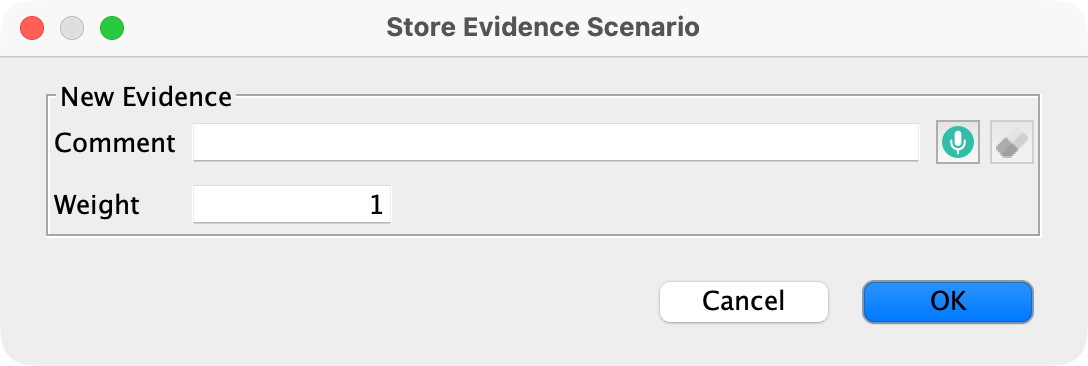
Click OK to confirm. An additional icon in the Status Bar indicates that there is an Evidence Scenario File.
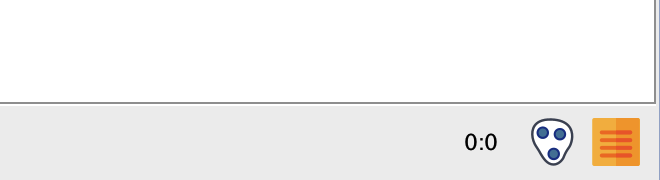
Right-click the icon in the Status Bar to open its Context Menu. From there you can report on, edit, save, or remove the scenario file.
You can add further Evidence Scenarios to the ones already stored in the internal Evidence Scenario File.
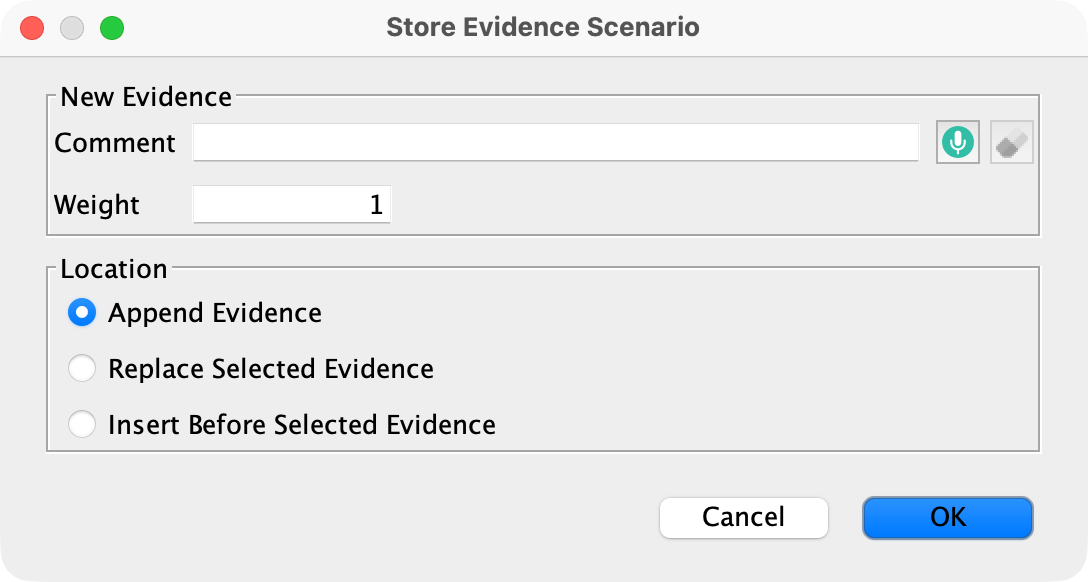
The next time you click the icon, the dialog offers Append Evidence, Replace Selected Evidence, and Insert Before Selected Evidence.
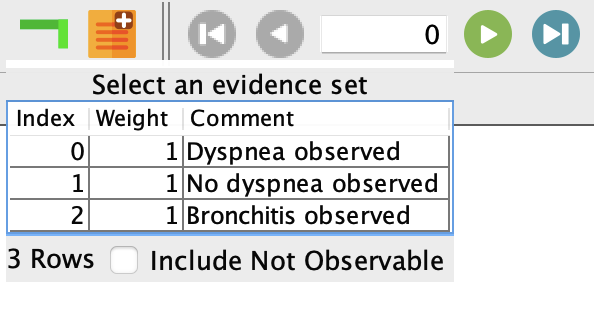
In Validation Mode, select Menus > Inference > Automatic Evidence-Setting and choose Evidence Scenarios as the source. Right-click the scenario index field in the toolbar and double-click a row to apply that scenario.
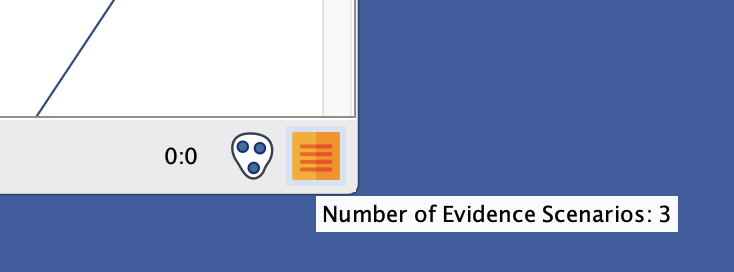
Also, hovering over the Evidence Scenario File icon with your pointer brings up the number of available Evidence Scenarios.
Upon selecting (and therefore applying) an Evidence Scenario, the corresponding comment, if available, appears in the Status Bar.
To remove the current Evidence Scenario File, right-click the icon and choose Remove. When you save the network, BayesiaLab saves its internal Evidence Scenario File with it. Reopening the network makes those scenarios available again.
Inference with an Evidence Scenario File
In addition to recalling Evidence Scenarios one by one, you can also use them in BayesiaLab batch-processing functions:
- Batch Labeling
- Batch Inference
- Batch Joint Probability
- Batch Outlier Explanation
In this context, the Evidence Scenario File provides the observations in the same way as an internal or external dataset.