Automatic Semantic Network Generator
Overview
The Automatic Semantic Network Generator turns a question or a topic into a map of related concepts, presenting the relevant dimensions, generating data for them, and learning a network that places similar concepts close together. Supply a question and keywords, and it extracts semantic dimensions, computes embeddings, synthesizes a dataset, and learns a Semantic Network from it.
The “Automatic” in the name distinguishes this function from the similarly named Semantic Network Generator, which is part of Hellixia’s Document Analysis tools.
“Automatic” means that only a topic is required, and a Knowledge File is optional.
Workflow
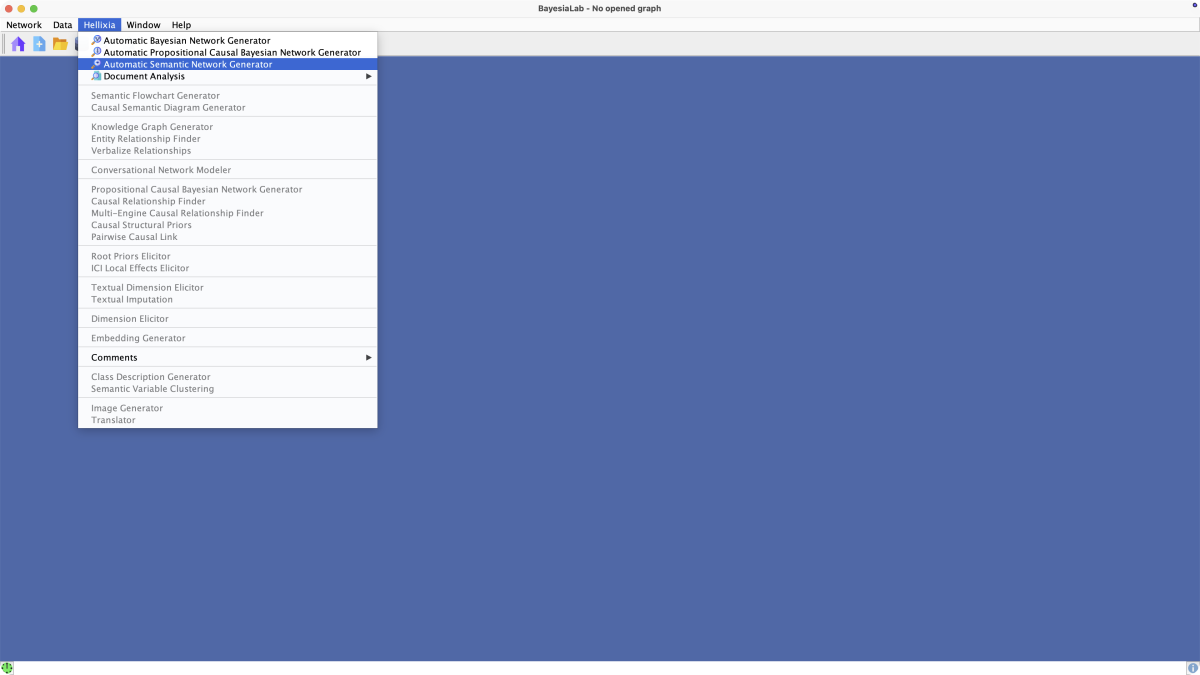
To begin, select Menus > Hellixia > Automatic Semantic Network Generator.
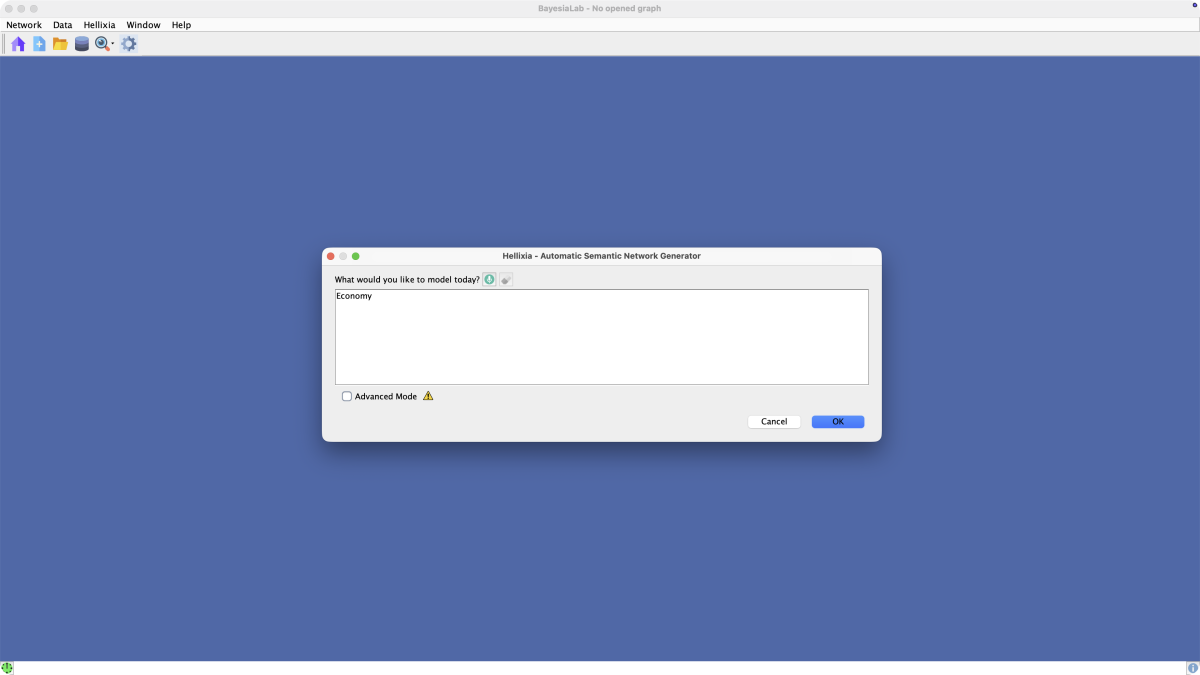
A window opens up and prompts you for the topic to be processed. By default, the simplified window shows a single input field with the prompt What would you like to model today?. For illustration purposes, we specify “Economy” as the topic.
Checking the Advanced Mode checkbox brings up an extended set of options.
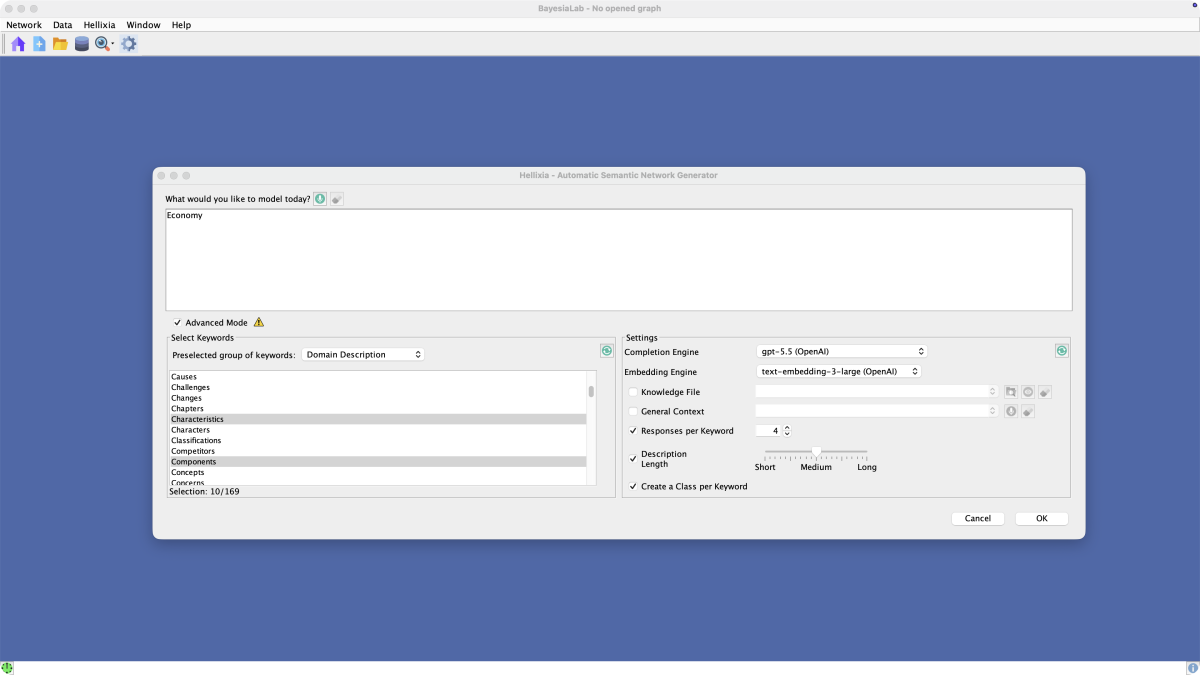
Under Select Keywords, a long list of keywords is available. You can select any number of them to guide the generation of the Semantic Network. Which keywords you choose depends on the domain and the objective of your inquiry.
For your convenience, the Preselected Group of Keywords dropdown menu offers groups of keywords that are useful starting points. Currently, you can choose from the following keyword groups:
Domain DescriptionRisk AnalysisScientific article analysisBook analysisAncestorsDescendantsPros & Cons
Given that “Economy” is a very broad topic, the Domain Description group is an appropriate default selection. This particular group includes the following 10 keywords:
AspectsCharacteristicsComponentsCriteriaDimensionsElementsFactorsFeaturesIndicatorsVariables
In the Completion Engine dropdown menu, you can specify the LLM you wish to use for this task. Note that the LLMs shown may go beyond the list of API keys you have provided under Menus > Window > Preferences > Tools > Hellixia.
Separately, you specify the Embedding Engine from its own dropdown menu.
The optional Knowledge File allows you to provide specific resources to support the process.
By providing General Context, you can also guide the semantic analysis. This is often helpful for disambiguating homonyms and polysemes. For instance, “Amazon” may refer to the river and surrounding rainforest, the e-commerce company, or the Greek mythological warriors.
By checking Responses per Keyword, you can specify the number of concepts to be retrieved per keyword. Each concept will be represented by a node in the Semantic Network.
Description Length refers to the literal length of the node (concept) descriptions to be generated.
The term “Description Length” used here must not be confused with the information-theoretic concept Description Length, which is used extensively throughout BayesiaLab.
Checking the Create a Class per Keyword box creates and applies a Class to each concept generated from a keyword.
Click OK to generate the Semantic Network.
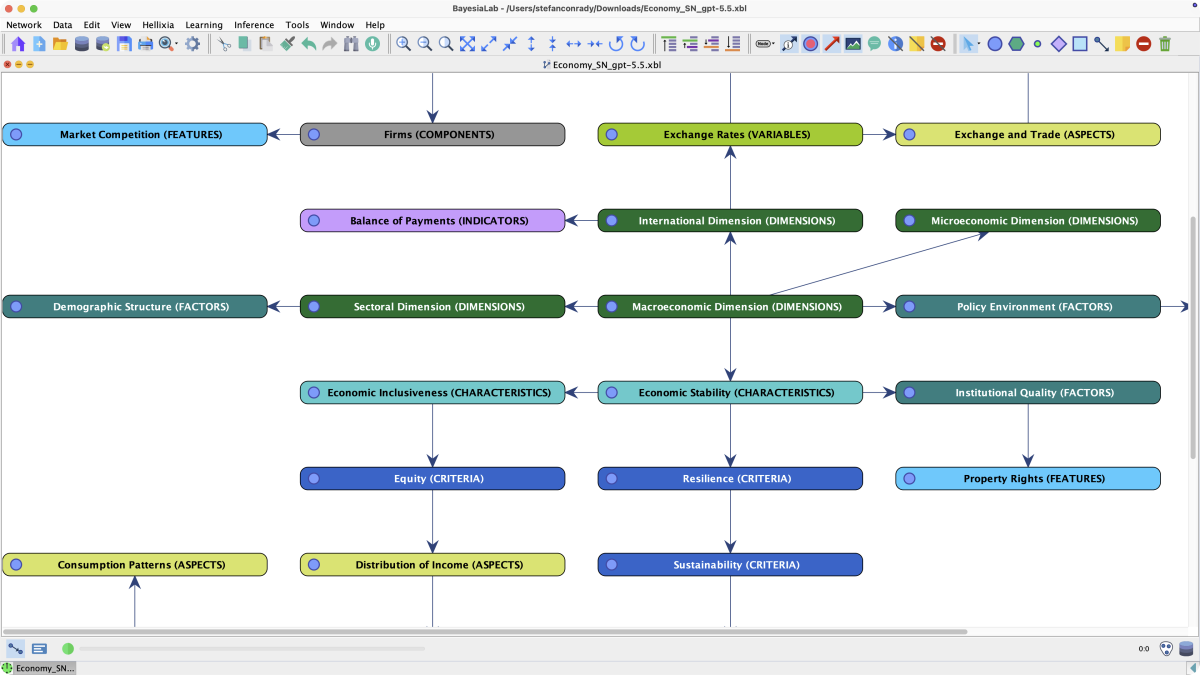
Upon completion, you can evaluate the newly generated Semantic Network in BayesiaLab’s Graph Panel. Note that each Node Name has a suffix corresponding to the keyword it relates to. For instance, the node was created as a result of the keyword “Indicators”.
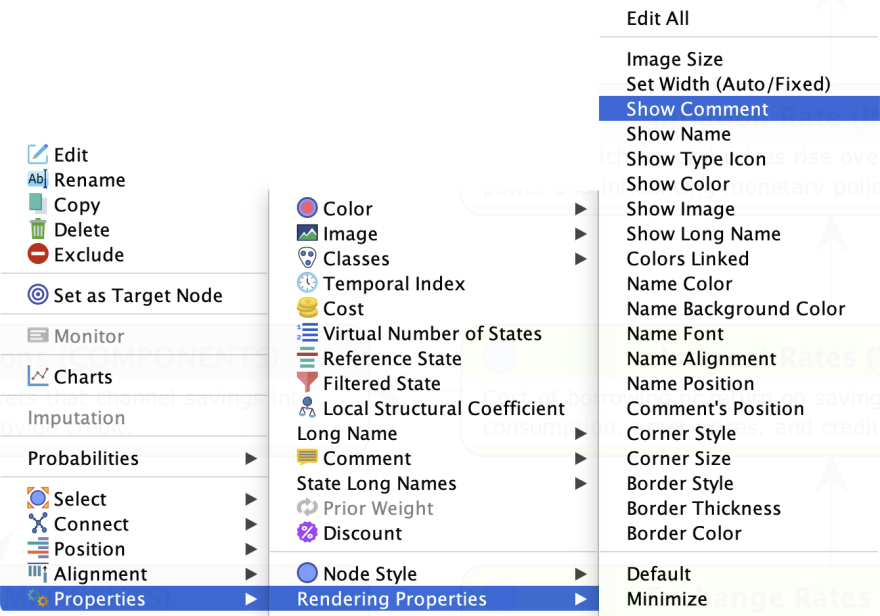
At this stage, you can also display the Node Comments, which provide richer descriptions for each node. To turn on the Node Comments, highlight the desired nodes, then select Node Contextual Menu > Properties > Rendering Properties > Show Comment.
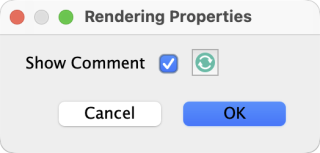
To confirm, check Show Comment in the pop-up window.
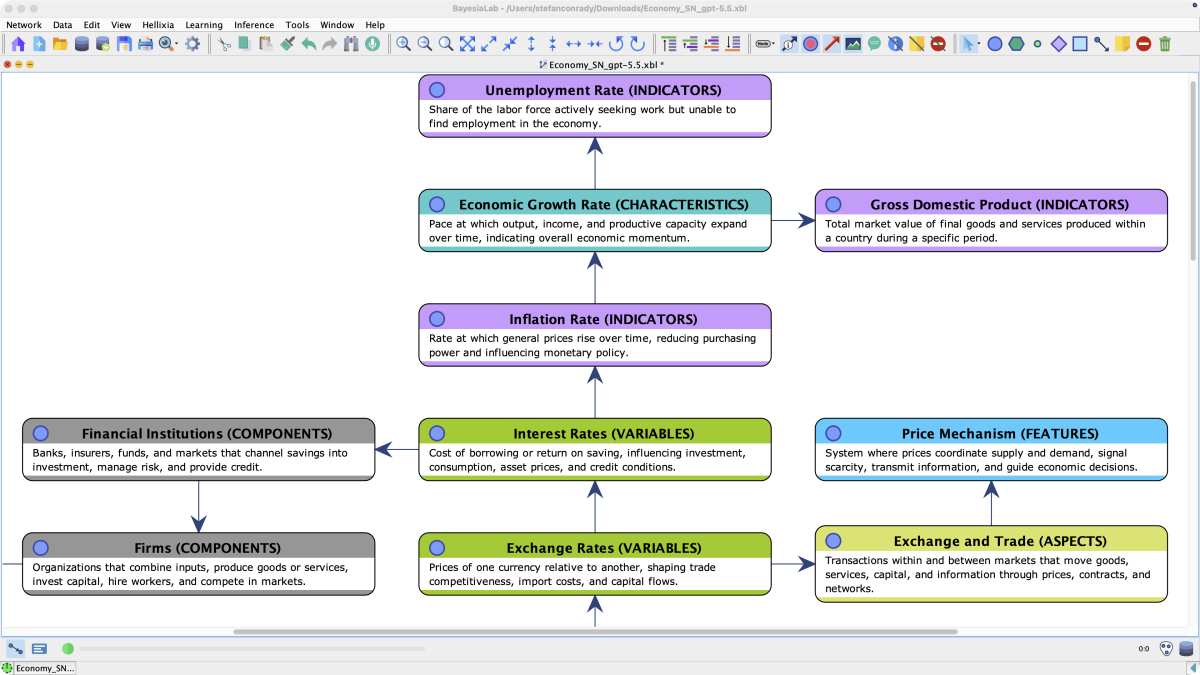
The updated Graph Panel now features the Semantic Network with Node Comments.
Related Resources
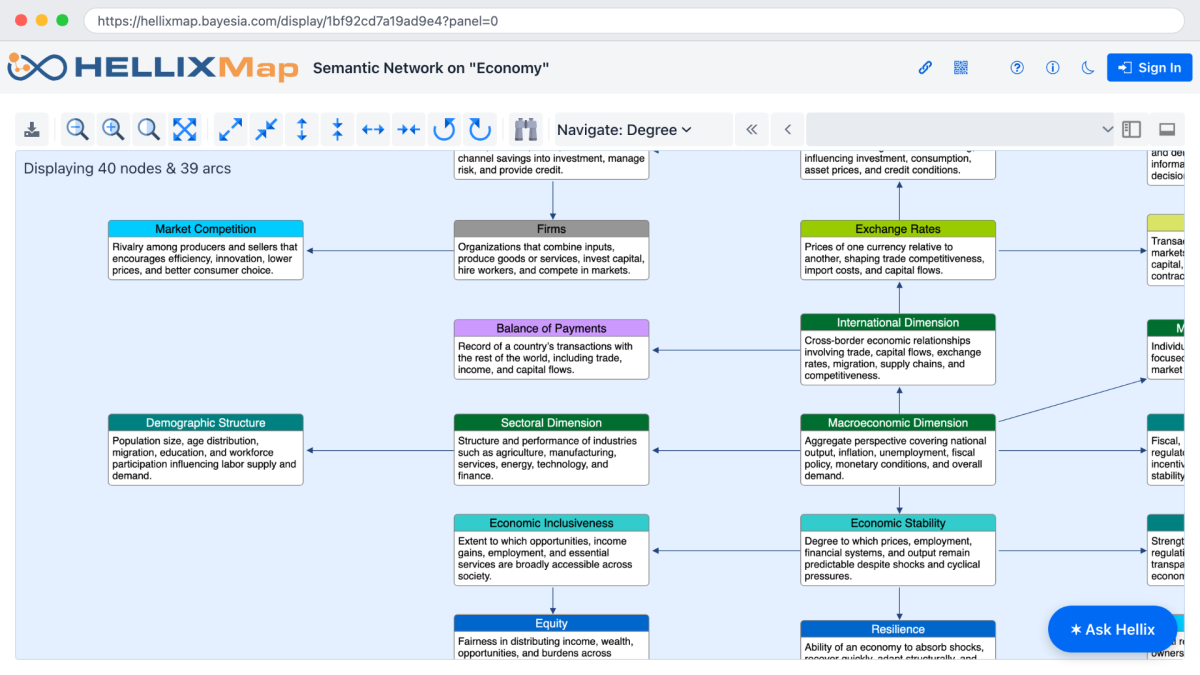
The Semantic Network shown above is available for download as an XBL file.

Alternatively, you can open this Semantic Network for further study on HellixMap.