Keyword-Based Node Comment Generator
Context
- Hellixia’s Keyword-Based Node Comment Generator is similar to the Dimension Elicitor.
- In the case of the Dimension Elicitor, Hellixia creates new nodes.
- With the Keyword-Based Node Comment Generator, Hellixia retrieves Dimension Names and the related Comments from ChatGPT and adds them automatically to the Node Comment.
Usage & Example
- Create a node representing the subject of interest, e.g., “Judea Pearl.”
- Select
Toolbar > Node Creation Mode - Move your pointer to the desired location to place your new node on the Graph Panel.
- Give the node a meaningful name representing the subject to be studied, i.e., “Judea Pearl.”* You can also add a
Node Long Nameand aNode Commentto provide more information. - Select the newly-created node, and then select
Menus > Hellixia > Comments > Keyword-Based Node Comment Generator, which brings up theKeyword-Based Node Comment Generatorwindow.
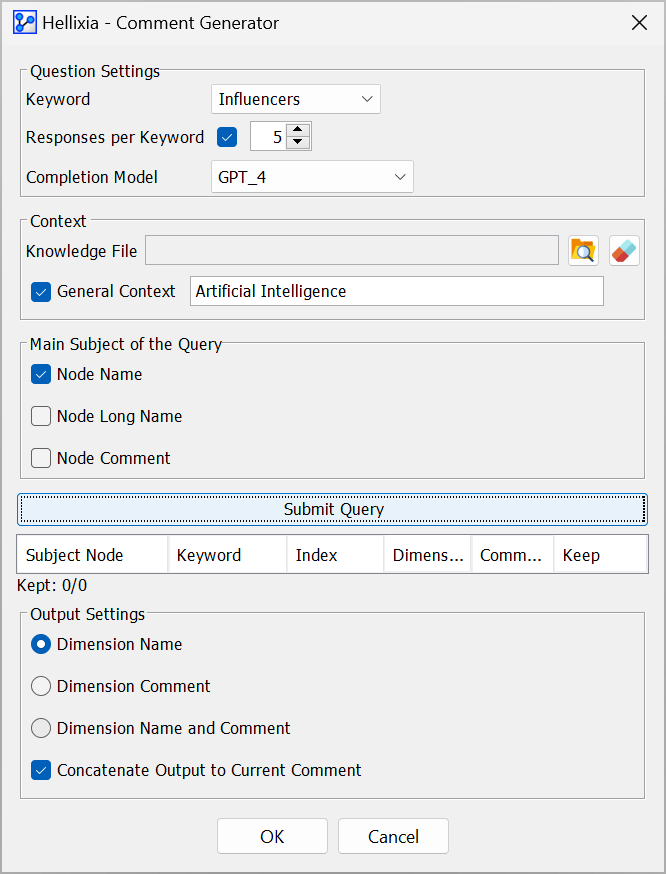
- There is a range of settings you need to specify in the
Keyword-Based Node Comment Generatorwindow:- Under
Question Settings,- Specify the
Keywordfrom the dropdown menu. - If needed, stipulate the maximum number of responses per
Keyword. - Select the
Completion Modelfrom the dropdown menu, e.g., GPT_35 or GPT_4.
- Specify the
- Under
Context,- Open a
Knowledge File, if available. - Provide a
General Contextfor the query. In our example, use “Artificial Intelligence.”
- Open a
- Under
Main Subject of the Query, select all fields that contain relevant information for the query, i.e.,Node Name,Node Long Name, andNode Comment. Check all that apply. Both the Node Long Names and Node Comments are optional properties. If they’re selected but not defined for a given node, Hellixia will use theNode Nameby default. - Click
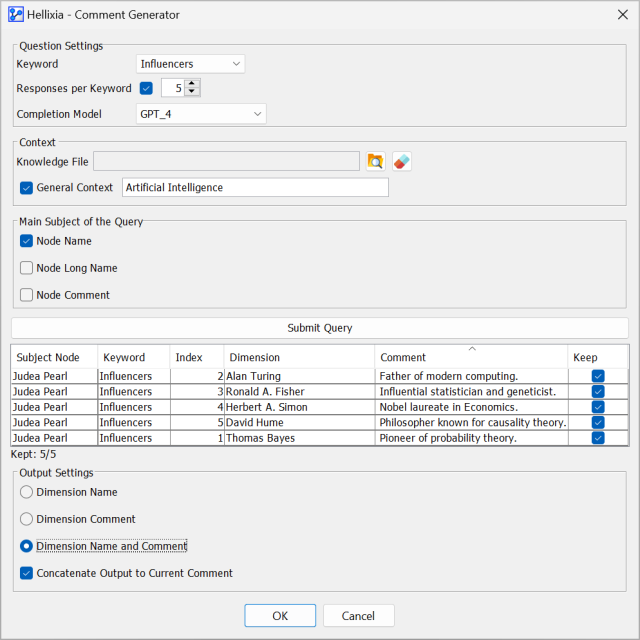
Submit Query, and Hellixia retrieves the responses from ChatGPT and lists them in a table at the bottom of theKeyword-Based Node Comment Generatorwindow.
- Under
- The
Subject Nodecolumn displays the main subject of the query. - The
Keywordcolumn lists the keyword used for the Dimension retrieved in that row. - The
Indexcolumn assigns an index to each Dimension retrieved for a Keyword. - The
Commentcolumn further describes the Dimension retrieved. - The
Keepcolumn indicates which Keyword/Dimension row to keep. - Under
Output Settings, specify what part of the results table will be added to theNode Comment. - By checking
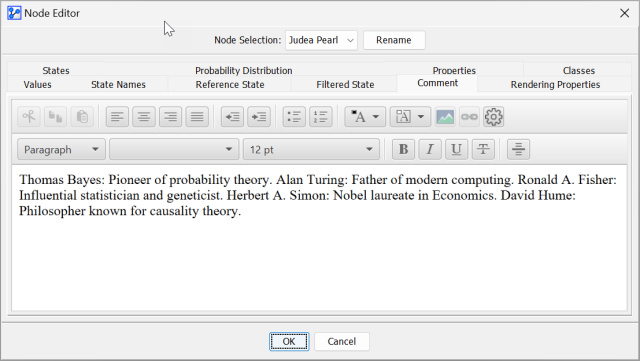
Dimension Name and CommentandConcatenate Output to Current Comment, you will obtain a comment like this, which you can see in the Node Editor.