
Weights
Context
This screen is only available if you designated a Weight variable in Step 2 — Definition of Variable Types.
Usage
Click the Weight variable in the Data panel; the Normalize Weights checkbox appears as the only option on the screen.
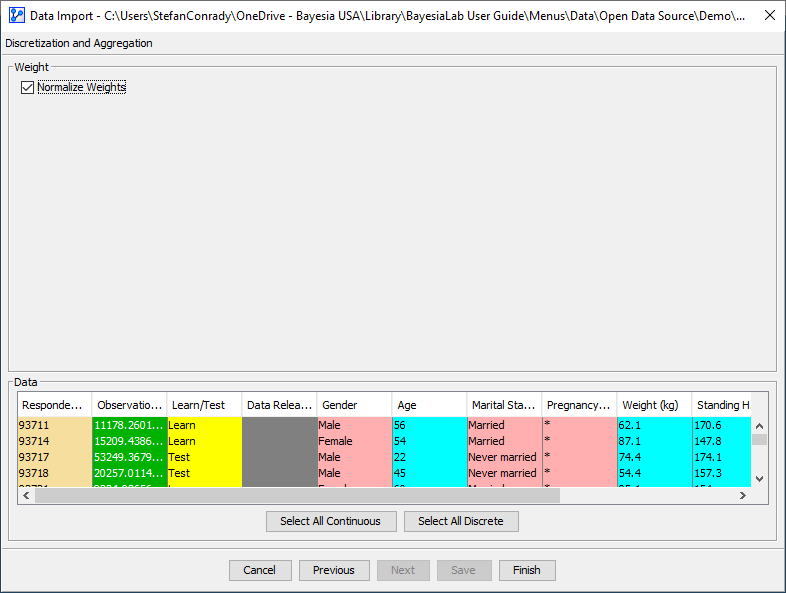
You need to determine whether to apply Normalize Weights or not:
- If yes, the Weights are normalized so that the total number of cases considered by BayesiaLab for machine learning is equal to the actual number of samples in the dataset.
- If no, the Weight variable is treated as representing the actual number of observed cases. So, a weight of 10 for one observation is treated and counted like ten instances of that same observation. As a result, the total number of cases considered by BayesiaLab corresponds to the population from which the weight was calculated.
This example illustrates the situation for a survey consisting of 10 observations:
| Observation No. | Weight | Normalized Weight |
|---|---|---|
| 1 | 10 | 1.0 |
| 2 | 12 | 1.2 |
| 3 | 8 | 0.8 |
| 4 | 9 | 0.9 |
| 5 | 11 | 1.1 |
| 6 | 13 | 1.3 |
| 7 | 7 | 0.7 |
| 8 | 4 | 0.4 |
| 9 | 15 | 1.5 |
| 10 | 11 | 1.1 |
| Sum | 100 | 10 |
If you do not normalize, BayesiaLab would consider a sample of 100 for learning purposes and presumably find spurious relationships. This “over-counting” by a factor of 10 has the same effect as reducing the Structural Coefficient to 0.1. If you normalize, BayesiaLab considers the correct proportions of the weighted samples but still only considers ten observations in total for learning purposes.
If you have specified a Weight variable, it will be taken into account in the Discretization and Aggregation algorithms.