
Database Drivers
Context
If you plan to load data from a database or a data warehouse into BayesiaLab, you must first install the necessary database drivers. These drivers are typically provided by the respective database vendor. The following example shows how to connect to a MySQL database running on localhost.
Instructions
Select Menus > Data > Open Data Source > Database.
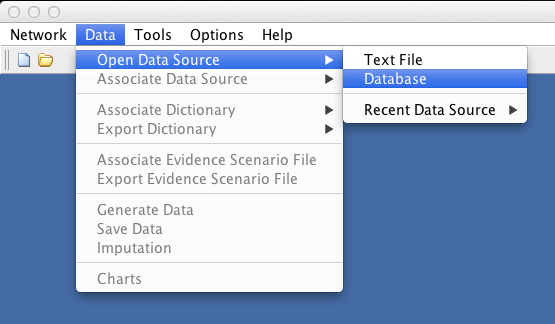
If no previous connection is defined, the Data Import Wizard will initially appear blank.
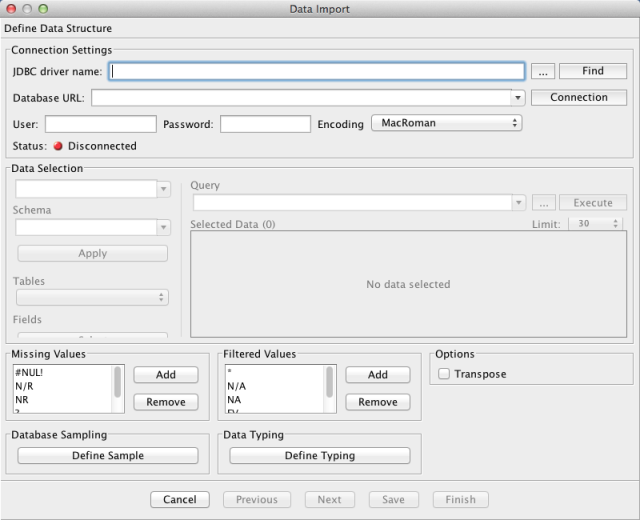
Clicking  opens the list of currently installed drivers:
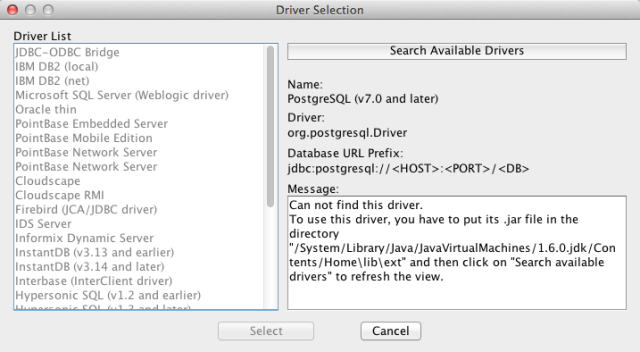
If the required driver is listed as not available, and thus grayed out, you will need to download the appropriate JDBC driver from your database vendor. Place the downloaded driver .jar file into the BayesiaLab installation’s bundled-JRE lib/ext directory (the exact path depends on your platform and BayesiaLab version; consult your installation directory or contact support@bayesia.us if you cannot locate it). Once the driver file is in place, please restart BayesiaLab and repeat steps 1 through 3.
After clicking Search Available Drivers, the relevant driver will appear in the Driver List:
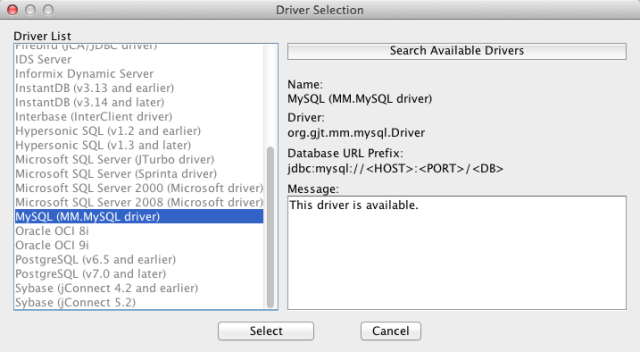
Click Select, and you will proceed to the next step of the Data Import Wizard, which enables you to connect to your database using your credentials.
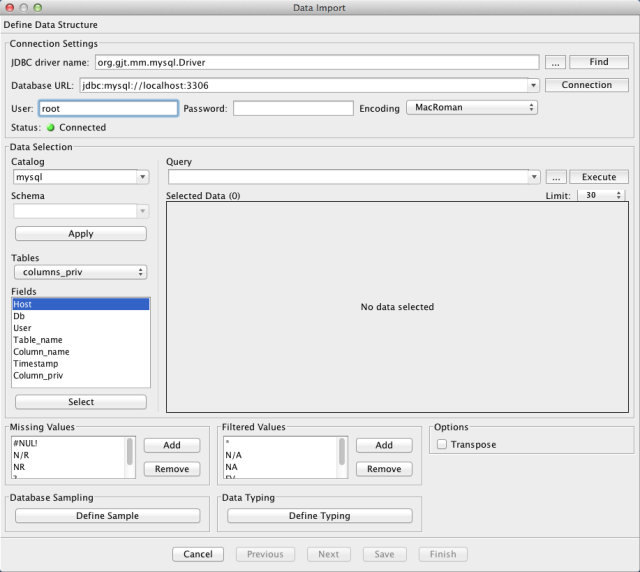
Upon successful connection to the database server, the available database will appear under Catalog. Select the database, click Apply, and the drop-down menu of Tables will appear. Each table’s fields can then be highlighted and selected to form a query. Upon selection, BayesiaLab will provide a data preview.

Clicking the SQL field opens up a larger window, which provides an opportunity to enter longer SQL statements.
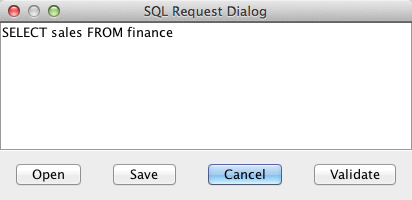
The elements in the lower portion of the dialogue box are identical to what is explained in the Data Import Wizard for text files in CSV format.

Clicking Execute concludes the database-specific portion of the import process.