
Information Panel
Context
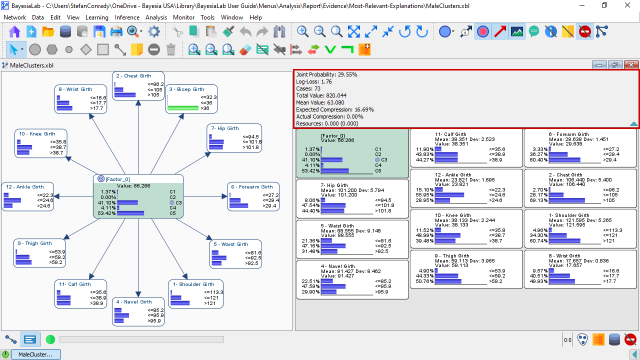
The Information Panel is positioned at the top of the Monitor Panel and features up to eight different statistics. It is only visible in Validation Mode.
Usage
You can open and close the Information Panel with the button located at the top right corner of the Graph Window.
Content
Joint Probability
The Joint Probability is calculated based on the current set of evidence, e.g., hard positive, hard negative, virtual, soft, and numerical. It is also known as the Marginal Likelihood. Without any evidence set, the Joint Probability is 100%. BayesiaLab updates it automatically with each modification of evidence via the Monitors.
Log-Loss
Log-Loss is the binary logarithm of the Joint Probability. If the Joint Probability equals 100%, the Log-Loss is 0, and it increases towards infinity as the Joint Probability approaches 0. Like the Joint Probability, the Log-Loss is automatically updated with each new piece of evidence.
Cases
If a dataset is associated with the network, the Information Panel shows an estimate of the number of records that correspond to the current set of evidence. If no evidence is set, the number reported by Cases is equal to the total number of records in the associated dataset. Whenever evidence is modified via the Monitors, the value of Cases is automatically recomputed.
Total Value
The Total Value shown in the Information Panel represents the sum of the expected values of all nodes in the network given the current set of evidence.
Mean Value
The Mean Value shown in the Information Panel represents the arithmetic mean of the expected values of all nodes in the network given the current set of evidence.
Expected Compression
Expected Compression measures the relative reduction of the sum of the entropies of all unobserved nodes compared to the sum of their prior entropies.
Actual Compression
Actual Compression measures the relative Information Gain of the current set of evidence, i.e., the Information Gain normalized by the Marginal Likelihood computed with the fully unconnected network.
Resources
Resources shows the sum of all Utility Nodes.
Display Options
If not shown by default, you can add Compression and Resources to the Information Panel:
- Select
Node Contextual Menu > Show > Compression. - Select
Node Contextual Menu > Show > Resources.
You can use Menus > Window > Preferences > Display > Monitor Panel to
define what is displayed by default in the Information Panel.