
Example 2
Example 2a: Fully Observed Particle
For this example, we use a simple network consisting of the Parent Node and the Child Node , which have a probabilistic relationship. For Parameter Updating, we will add a fully observed particle, i.e., a particle that contains a value for both and . For a compact presentation, we show both nodes in Monitor Style, which means that, in Validation Mode, the distribution of the states is directly shown on the node.
To start Parameter Updating, select Menus > Inference > Parameter Updating. Next, we need to specify the Prior Weight. For our purposes, we select a value of 100.
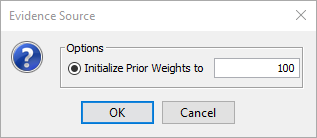
Choosing an overall Prior Weight of 100 specifies a Prior Weight of 100 for , and spreads this weight to , i.e., the Prior Weights are allocated based on the joint probability of each condition. We can review the Prior Weights of each node by opening the Node Editor.
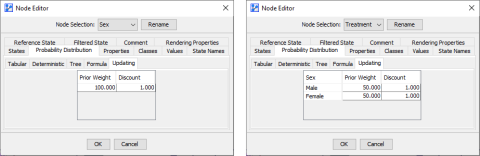
In the Node Editor, Prior Weights can also be edited. Alternatively, you can assign Prior Weights by selecting Node Contextual Menu > Properties > Prior Weights. In that case, the Prior Weight is distributed uniformly across all conditions. In the Node Editor, you can also edit Discounts. You can also assign Discounts for a node by selecting Node Contextual Menu > Properties > Discounts. In this context, the same Discounts are applied to all conditions.
Adding Particles
We now take this network and perform Parameter Updating by adding particles one-by-one. The following screenshots focus on the relevant parts of the control panel in the Toolbar and the Monitor Panel.
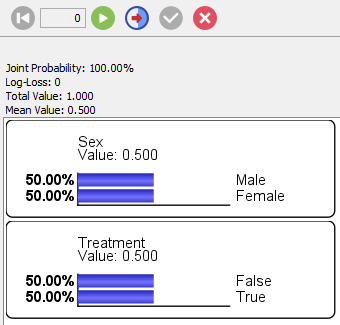
Particle #1
For the first particle, we set the evidence and .
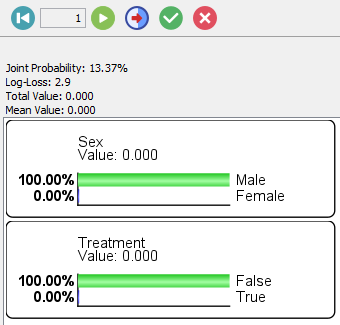
Upon validating the evidence we just set, we open the corresponding Node Editors to see the new probabilities and the new Prior Weight.
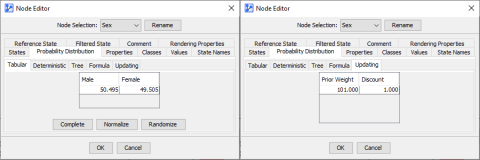
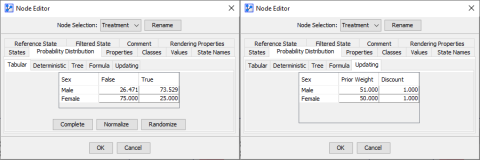
Note that for the node, only the condition was updated. The probabilities and the Prior Weight for remain unchanged. Below is the result of the update after mixing our virtual particles with a particle corresponding to a male that did not take the treatment.
Example 2b: Partially-Observed Particle
In the following variation of the above example, we return to the original set of probabilities and a Prior Weight of 100.
Now, however, we only apply a particle containing an observation for but not for .
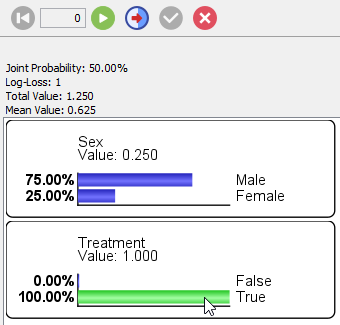
Upon validating this incomplete particle, we can review the probability tables in the Node Editor:
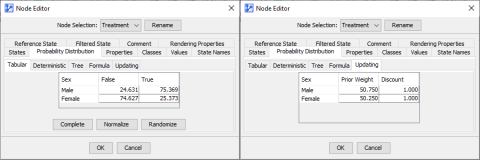
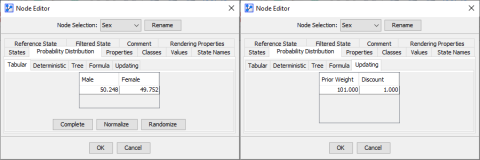
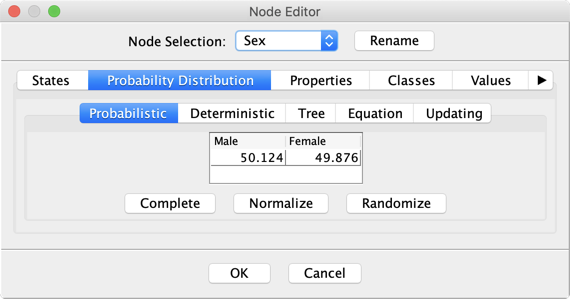
As we can see, even though we do not know the state of the node , knowing changed the distribution of . The new particle is split according to the posterior probability of . Note that the distribution of the node has been updated as well:
Example 2c: Partially-Observed Particle with Soft Evidence
In a further variation of this example, we apply a partial observation with Soft Evidence. For example, we just see a pill box next to the person, which increases our belief that he/she has taken the treatment, say 75%.

This changes the posterior distribution of . The new particle will thus be split to take into account the uncertainty on both and .
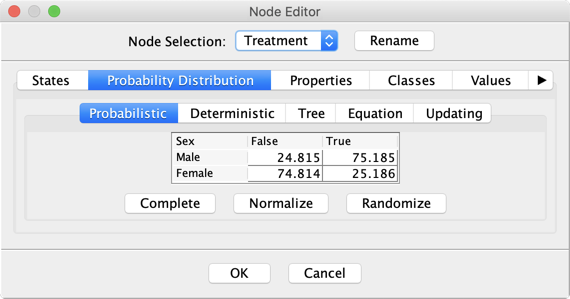
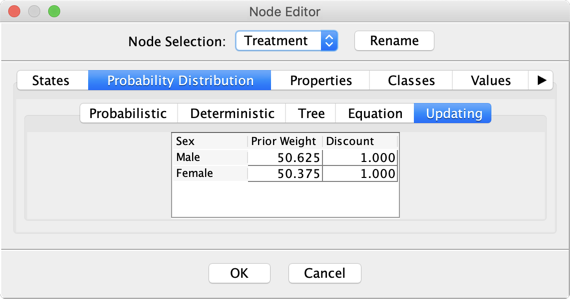
Below is the result of the update after mixing our virtual particles with this particle. The entire table of has been updated.
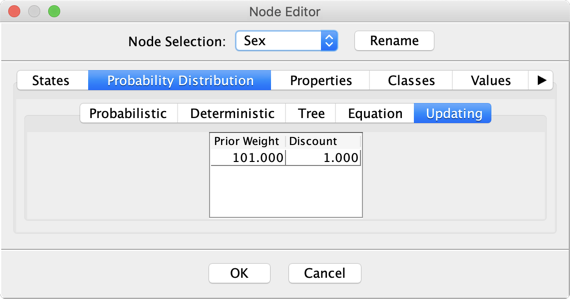
Setting the Prior Weight to 0 allows indicating that you do not want to update the corresponding node.
Obviously, you need to have at least one node that has a Prior Weight greater than 0 for being able to use the Parameter Updating feature.