
Step 5 — Import Report
The Import Report is the fifth and final step of the Data Import Wizard.
Workflow
-
After you click Finish in Step 4 of the Data Import Wizard, two progress bars inform you about the status:
-
Data Discretization:

-
Dataset Creation:
-
Missing Values Estimation:
-
-
Depending on the size of your dataset, the selected discretization algorithms, and the number of missing values, this may take anywhere from a fraction of a second to several minutes.
-
Once completed, BayesiaLab opens up a new Graph Window with all imported variables now represented as nodes.
-
At the same time, a prompt appears, offering you the Import Report.
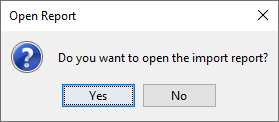
- Note that this report is entirely optional. So whether you display it or not does not affect the completion of the Data Import Wizard.
- Click
Yesto bring up the Import Report window.
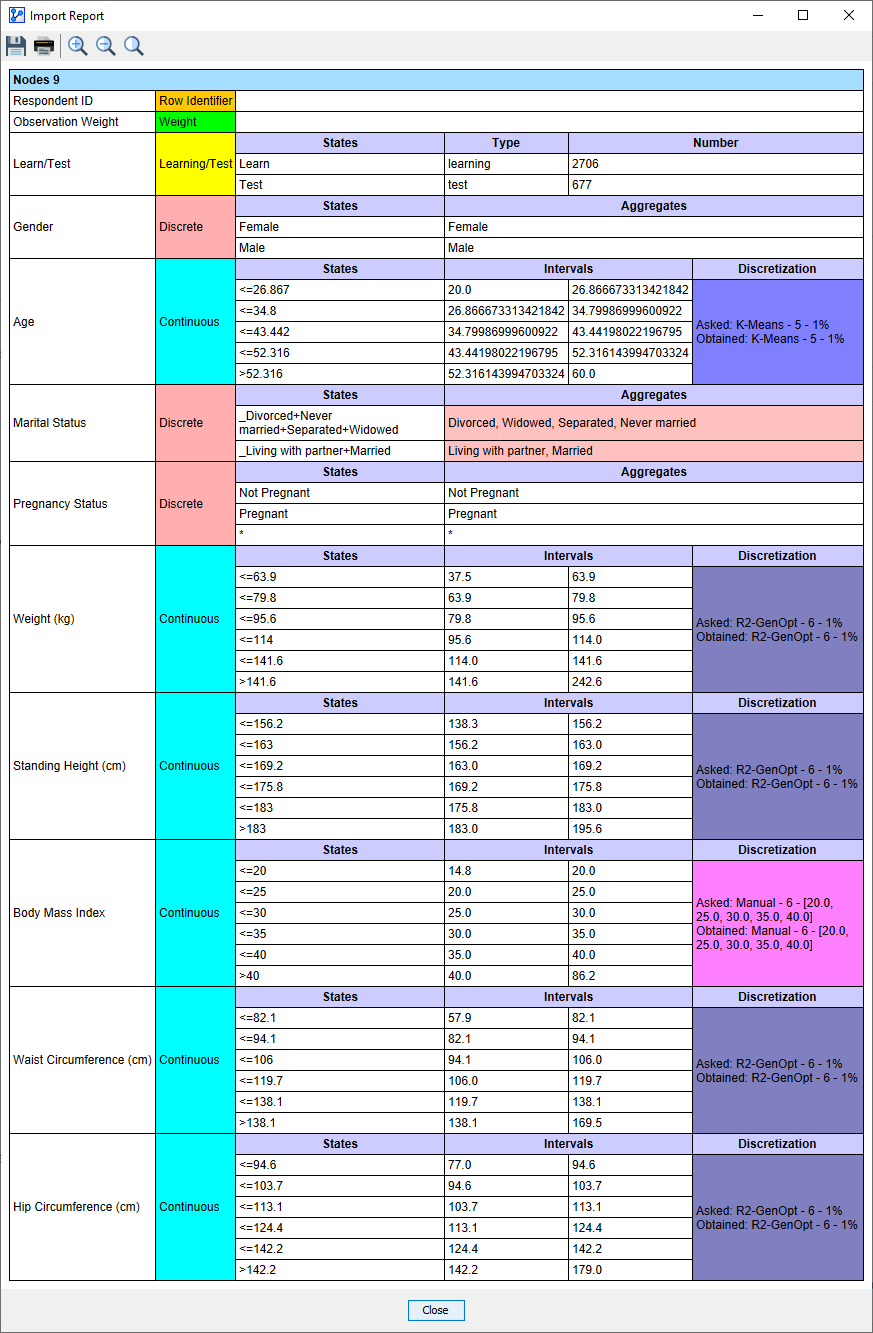
- The first column displays the names of the imported variables.
- The second column displays the type associated with each variable.
- For a Weight variable, no further information is available or provided.
- For a Learn/Test variable, the association with BayesiaLab’s Learn and Test labels is shown, plus the corresponding number of cases.
- The third column shows all States of each variable, if applicable.
- The right part of the report depends on the variable type:
- Discrete Variables:
- The report shows each state and, adjacent to it, any aggregations that were performed. Furthermore, the color of the rightmost cell in the row highlights that an aggregation took place.
- Continuous Variables:
- The names of the discretized states are shown.
- The next two columns to the right report the lower and upper thresholds for each interval.
- The rightmost column is colored according to the discretization algorithm used.
- Discrete Variables:
- The Asked/Obtained column indicates the requested discretization algorithm versus the one that was used as the fallback option.
- Note that you can save this Import Report as an HTML file, so you can subsequently open the fully-formatted report in Excel or any other spreadsheet software.